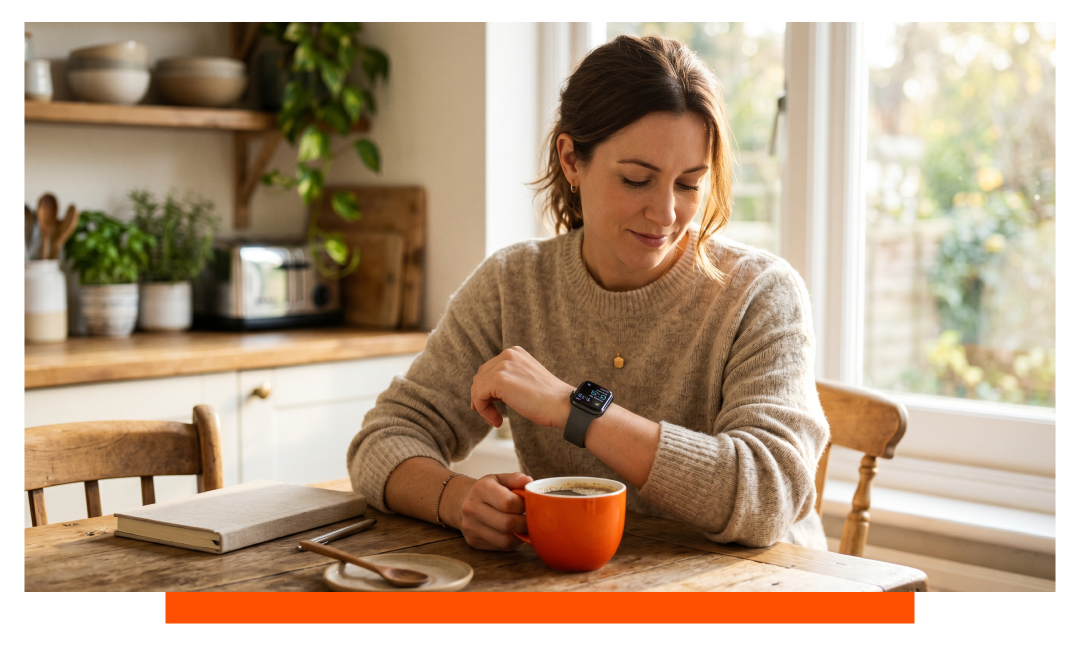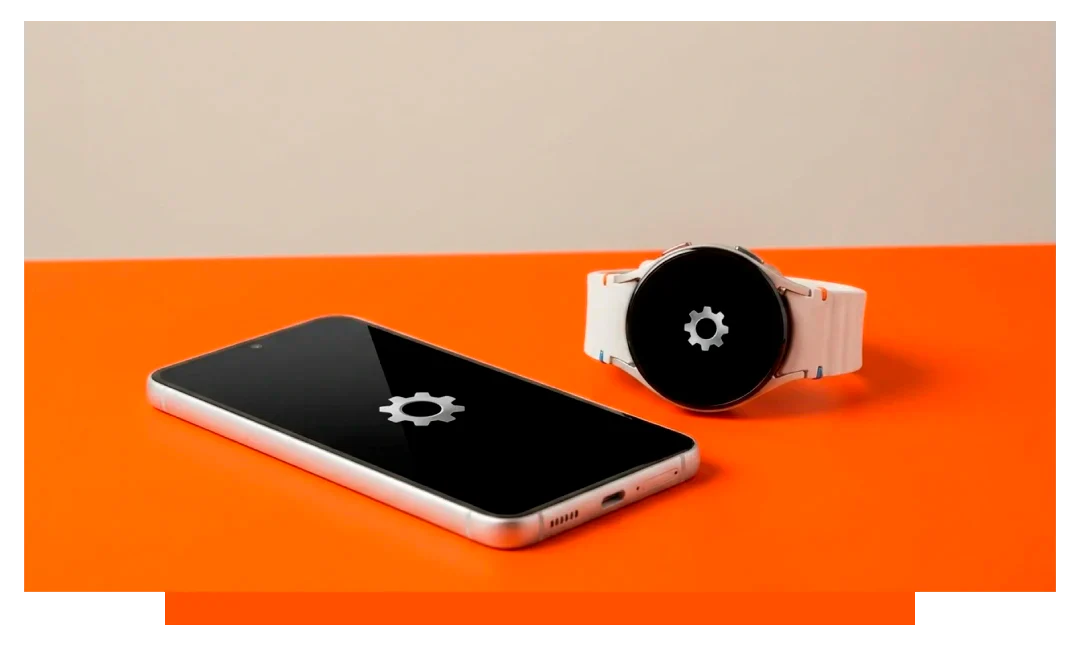


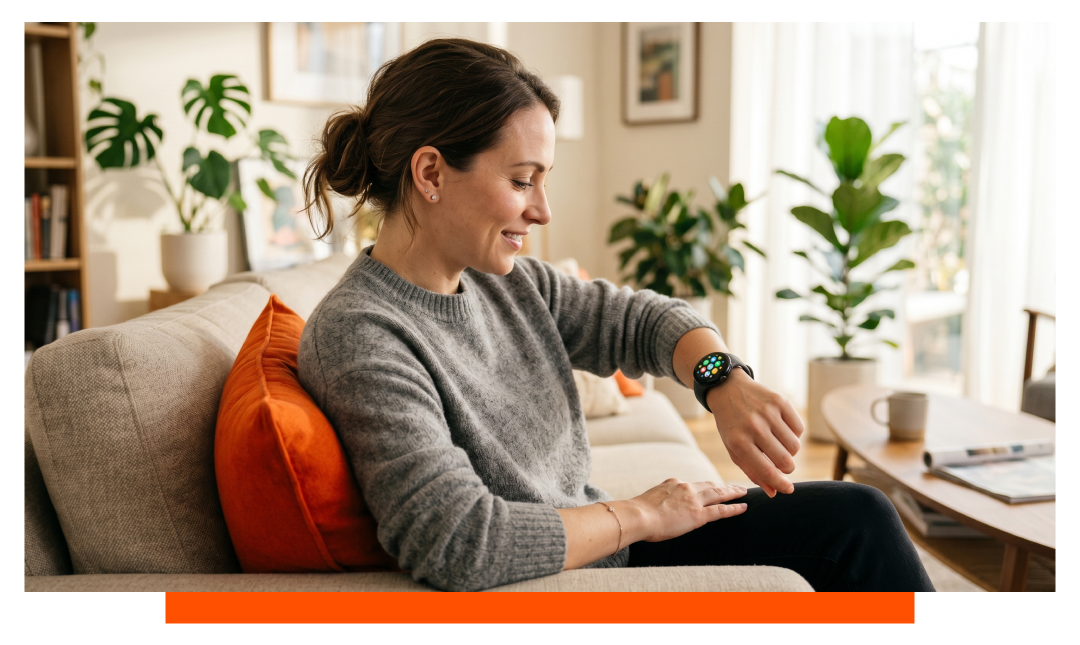
Open the Play Store on your watch, search or browse a Wear OS app, then tap Install. You can also push apps from your Android phone's Play Store or the web, and updates arrive automatically. Advanced users can sideload apps with ADB, but it is optional and riskier.
How do you add apps to Wear OS?
The fastest method is installing directly on your watch through the Google Play Store app. Make sure your watch is connected to Wi-Fi or to your phone with internet access, then open Play Store, find the app, and tap Install. Most Wear OS 4 and newer watches complete small installs in under a minute.
- Open Play Store
- Search or browse
- Tap Install
App sizes vary from around 5 MB for utilities to over 100 MB for maps and music tools. A Samsung Galaxy Watch 8 or Google Pixel Watch 3 typically offers up to 32 GB storage, which comfortably holds dozens of apps. If storage is low, uninstall unused apps or clear downloads before installing.
Install from your Android phone
On your Android phone, open Google Play Store, find the app, and tap the small arrow beside the Install button to choose your watch if supported. You can also open Library - Manage devices, then select your Wear OS watch to push installs. This method is convenient when typing long searches.
Many developers provide a bundled phone and watch experience that installs the watch component automatically. If you do not see your watch, check that Bluetooth is connected and both devices share the same Google account. Over Wi-Fi, a 50 MB app can download in about 10 to 30 seconds depending on speed.
Install from the web
Visit play.google.com on a desktop browser, sign in, open the app page, and use the Install dropdown to pick your watch. Web install is helpful when you are browsing reviews on a laptop and want to queue multiple apps. Installs start as soon as the watch is online and charging, if required by the app.
Can you install third-party apps on Wear OS?
Yes, Wear OS supports third-party apps through Google Play, covering categories like fitness, messaging, navigation, finance, and productivity. Thousands of watch-optimized titles are available, from Spotify and Strava to Google Maps and WhatsApp. Many apps include tiles, complications, and rich notifications tailored for round or square watch displays.
Sideloading with ADB
Advanced users can sideload APKs using ADB, which is helpful for testing, enterprise distribution, or unavailable regional apps. Enable Developer options on the watch, turn on ADB debugging - Wireless debugging, then use a computer to run adb connect watch-IP and adb install app.apk. Only sideload software you trust, as it bypasses Play Protect and may affect security or battery.
Sideloading does not auto-update through Google Play, so you must manually reinstall newer APKs. Some phone-only APKs will not render correctly on a watch due to missing Wear-specific layouts. If an install fails, check for ABI compatibility, target SDK, and minimum Wear OS version requirements.
Requirements and compatibility
Most modern Wear OS 3 to 5 watches require an Android phone for pairing and installs. Many recent models no longer support iOS pairing, so confirm compatibility before buying if you own an iPhone. Your Google account must match across the watch and phone to sync purchases and app licenses.
Storage and connectivity
Newer watches commonly include 16 to 32 GB storage, with 1.5 to 2 GB RAM for smooth multitasking. Large apps or offline media like playlists and maps consume hundreds of megabytes, so plan space accordingly. Installations use Wi-Fi, LTE, or the phone’s internet connection, not plain Bluetooth for bulk transfers.
Real-world example: Galaxy Watch 8 and Pixel Watch 3
On a Samsung Galaxy Watch 8, press the home key to open apps, tap Play Store, use voice or keyboard search, and tap Install. Samsung’s One UI Watch experience keeps tiles and complications ready to add after an app finishes installing. For best speed, connect the watch to 5 GHz Wi-Fi.
On a Google Pixel Watch 3, open Play Store on the watch, browse Categories - Watch Apps, and select an optimized title. You can push the same app from your Pixel phone by selecting your watch on the app’s Play Store page. Both watches typically auto-update apps when charging and connected to Wi-Fi.
Troubleshooting installation errors
If the Play Store says Not compatible, the app may be phone-only or require a newer Wear OS version. If you see Pending for a long time, switch to Wi-Fi, place the watch on a charger, and retry. Clearing cache for Google Play Store and Google Play services on the watch can also help.
Play Store shows phone-only apps
Open Play Store on the watch and browse the Watch category to filter compatible titles. On your phone or web browser, look for the Available on more devices section and select your watch specifically. If the watch does not appear, ensure it is linked to the same Google account.
App stuck on pending
Disable Battery Saver on the watch, then try again. Verify at least 500 MB of free space for larger apps and assets. Reboot both watch and phone, then reconnect Wi-Fi.
- Toggle Airplane mode
- Reboot watch and phone
- Disable Battery Saver
- Use Wi-Fi, not Bluetooth
- Free 500 MB storage
Installation methods compared
| Method | Start location | Key requirements | Typical speed | Offline capable |
|---|---|---|---|---|
| On-watch Play Store | Watch | Wi-Fi or LTE | Fast for small apps | No |
| From Android phone | Phone Play Store | Same Google account | Fast, easy typing | No |
| From web Play Store | Desktop browser | Signed-in account | Fast queuing | No |
| Sideload via ADB | Computer with ADB | Wireless debugging | Varies by APK size | Yes |
App updates and management
To update apps manually, open Play Store on the watch, tap Manage apps, and choose Update all. To enable automatic updates, open Settings inside Play Store and leave Auto-update apps on, ideally over Wi-Fi. You can uninstall apps from Manage apps or by long-pressing the icon in the launcher.
If you switch watches, your Play Store Library helps you re-install favorite apps quickly. Some apps sync settings and premium status through your Google account, saving time after upgrades. For heavy apps like offline maps, download while charging to avoid power dips.
Safety, permissions, and privacy
Review permissions on first launch to confirm access to sensors like heart rate, location, microphone, and body sensors. Only approve what the app needs for your use, and revoke permissions in Settings if you change your mind. Check developer reputation and update history before installing sensitive finance or health apps.
Accessories tip for better workouts
If you also switch ecosystems, explore Galaxy Watch 8 straps and Pixel Watch 3 straps to keep devices comfortable and secure during training.
FAQ
Do apps install over Bluetooth?
Large app installs use Wi-Fi, LTE, or your phone’s internet rather than slow Bluetooth. Bluetooth is used mainly for control and small data sync, not bulk transfers.
Can I use an iPhone to install apps?
Many Wear OS 3 and newer watches do not officially support iOS pairing. App installs and account sync generally require an Android phone linked to the same Google account.
Why does an app say Not compatible?
It may be phone-only, require a newer Wear OS version, or need sensors your watch lacks. Check the app page for the Watch icon and device compatibility list.
How do I update all apps at once?
Open Play Store on the watch, tap Manage apps, then Update all. Ensure Auto-update is enabled for hassle-free updates overnight.
How much storage do watch apps use?
Most watch apps use 5 to 100 MB, but offline music and maps can exceed 500 MB. Keep at least 1 to 2 GB free for smooth updates and caches.
Is sideloading safe?
Sideload only from trusted sources, as it bypasses Play Protect and can introduce risks. For most users, sticking to Google Play is the safest approach.
Conclusion
Install apps on your Wear OS smartwatch by opening the on-watch Play Store, searching for a compatible app, and tapping Install. You can also push installs from your Android phone or the web, while advanced users may sideload with ADB if needed. For the fastest, safest experience, use Google Play and keep auto-updates on.